> ## Documentation Index
> Fetch the complete documentation index at: https://docs.xeol.io/llms.txt
> Use this file to discover all available pages before exploring further.
# Setup
> Instructions on how to get started with Xeol's dashboard
## Xeol Dashboard
### Step 1: Get Access to the Xeol Dashboard
Sign up [here](https://www.xeol.io/get-started). You should then receive an email invite to the Xeol dashboard.
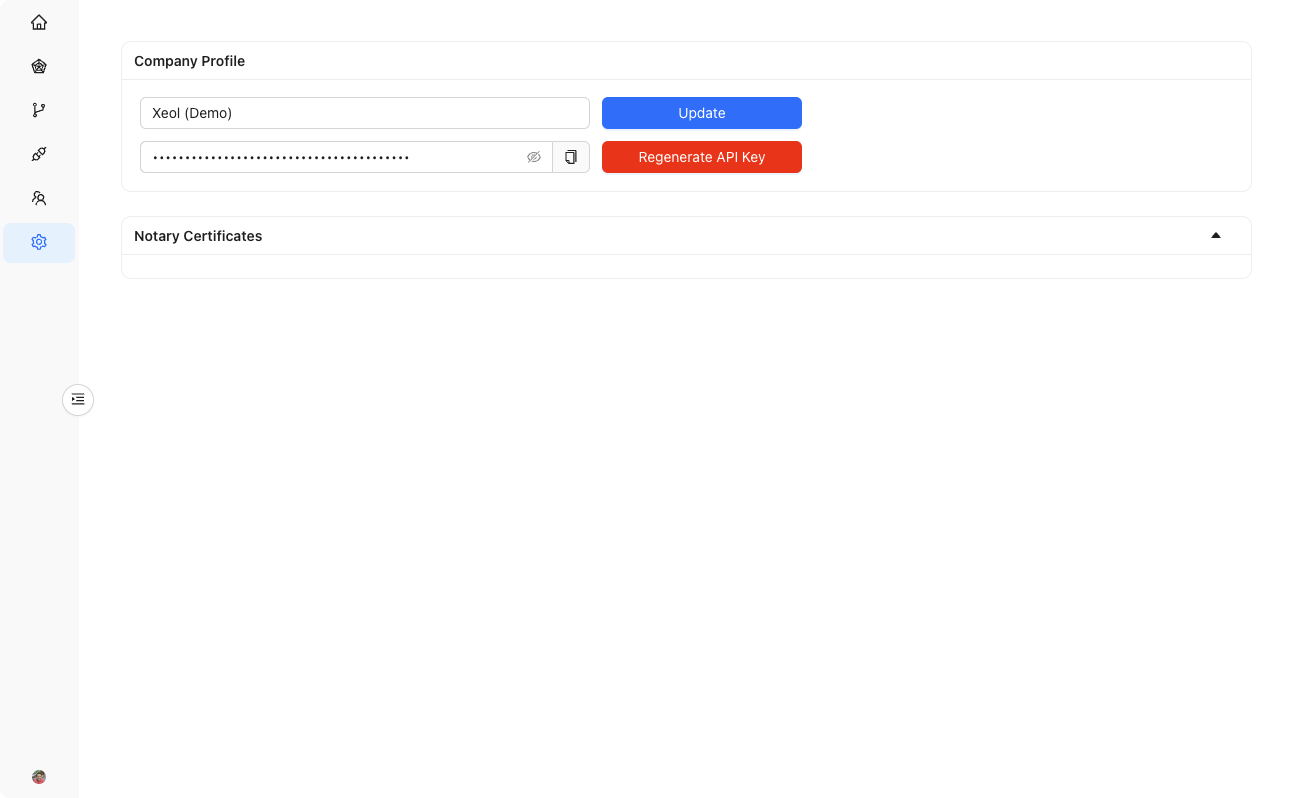
### Step 2: Generate API key
Under the Settings page, you will be able to generate an API Key.
 ### Step 3: Add Xeol CLI to your CI
With your API key, you can now add [Xeol](https://github.com/xeol-io/xeol) to your CI system. After you build an image,
you can scan it with Xeol like this:
```bash pipeline.yml theme={null}
curl -sSfL https://raw.githubusercontent.com/xeol-io/xeol/main/install.sh | sh -s -- -b /usr/local/bin
xeol $(repository):$(tag) --api-key=$(XEOL_API_KEY)
```
This will send your image SBOMs back to your Xeol dashboard.
### Step 4: Enforce policies
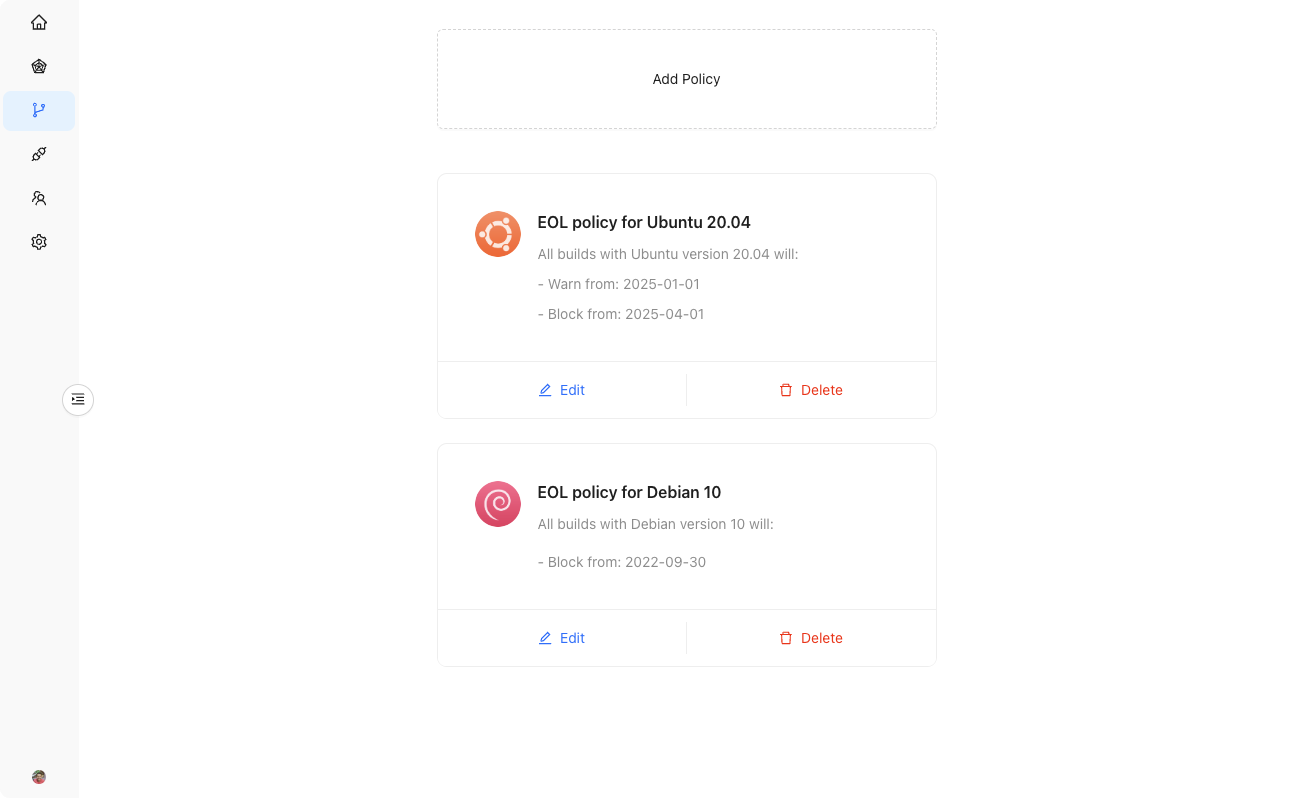
Now that you have data about your builds, you can create policies in the dashboard that are enforced at build time.
You can set security policies to `warn` or `deny` on any software within your image:
1. `warn` policy will show a warning sentence in the pipeline but not fail it.
2. `deny` policy exit the build with a non-zero exit code and fail the pipeline.
### Step 3: Add Xeol CLI to your CI
With your API key, you can now add [Xeol](https://github.com/xeol-io/xeol) to your CI system. After you build an image,
you can scan it with Xeol like this:
```bash pipeline.yml theme={null}
curl -sSfL https://raw.githubusercontent.com/xeol-io/xeol/main/install.sh | sh -s -- -b /usr/local/bin
xeol $(repository):$(tag) --api-key=$(XEOL_API_KEY)
```
This will send your image SBOMs back to your Xeol dashboard.
### Step 4: Enforce policies
Now that you have data about your builds, you can create policies in the dashboard that are enforced at build time.
You can set security policies to `warn` or `deny` on any software within your image:
1. `warn` policy will show a warning sentence in the pipeline but not fail it.
2. `deny` policy exit the build with a non-zero exit code and fail the pipeline.